
Curious about how to unlock the full power of decentralized apps (DApps) right from your mobile device? Whether you are looking to swap tokens, stake crypto, or dive into the world of NFTs, Trust Wallet gives you the tools to do it. But first, you need to enable its DApp browser.
In this blog, we will guide you through the easiest way to activate the DApp browser on Android and demonstrate how iOS users can still access DApps using WalletConnect. No jargon, no confusion, just clear steps to get you connected and exploring Web3 in minutes. Let’s dive in.
How to Enable the DApp Browser for Trust Wallet on Android
Here is a simple, step-by-step guide to help you access and use the DApp browser in Trust Wallet on your Android device.
Step 1: Install or Update Trust Wallet
Head to the Google Play Store and search for Trust Wallet. Tap ‘install‘ if you are new, or ‘update‘ if you already have it. Ensure you are using the latest version of the Trust Wallet to access all features, including the DApp browser.
Step 2: Open Trust Wallet
Launch the Trust Wallet app from your home screen or app drawer. If you are new, tap “Create a New Wallet” and follow the setup instructions. If you already have a wallet, tap “Import Wallet” and enter your 12-word recovery phrase.
Step 3: Locate the DApp Browser Tab
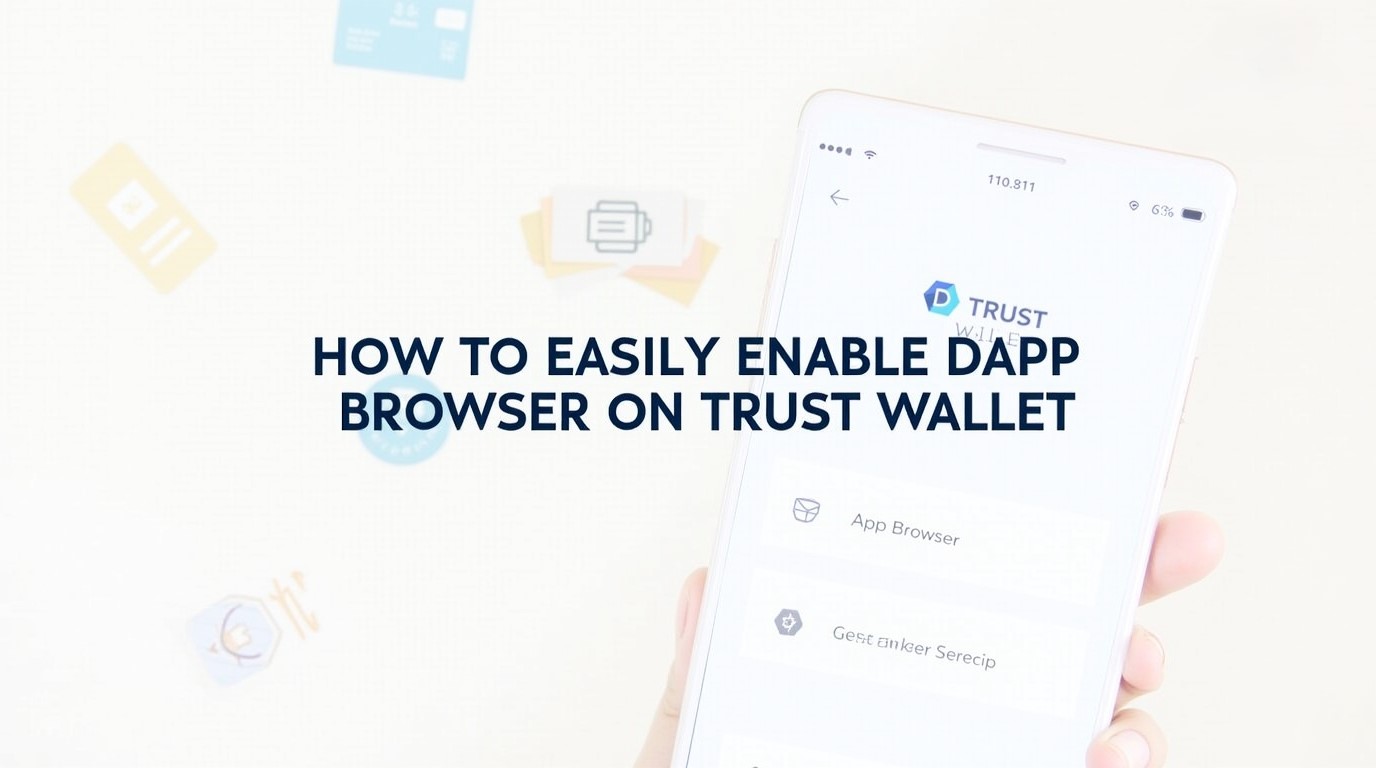
Once inside the app, look at the bottom navigation bar. Tap on the “Browser” or “DApp” tab. This opens the built-in decentralized application browser.
Step 4: Browse and Connect to a DApp
Use the search bar to find popular decentralized applications (DApps), such as PancakeSwap, Uniswap, or OpenSea. Tap on the DApp you want to use. When prompted, connect your wallet to the DApp by approving the connection request.
Step 5: Start Using DApps Safely
You are now ready to trade tokens, swap assets, stake crypto, or explore NFTs directly within the browser. Always double-check URLs and only interact with trusted DApps to keep your assets secure.
How to Connect Trust Wallet for dApps on iOS with WalletConnect
Since Trust Wallet’s DApp browser isn’t available on iOS, you can still access decentralized apps using WalletConnect, a secure bridge between your wallet and DApps. Here is a simple guide to get started:
Step 1: Open Safari or Chrome
On your iPhone, launch Safari or Chrome, as both work well for accessing DApps. Avoid using in-app browsers from social media or messaging apps, as they may not support WalletConnect properly.
Step 2: Go to a dApp Website
Visit the official website of a DApp you want to use. Popular choices include:
Always double-check URLs to avoid phishing scams.
Step 3: Tap “Connect Wallet” and Select WalletConnect
On the DApp’s homepage, look for a “Connect Wallet” button, usually at the top right. Tap it, then choose WalletConnect from the list of connection options.
Step 4: Choose Trust Wallet and Approve Connection
A QR code or prompt will appear. Tap Trust Wallet from the list of supported wallets. Your Trust Wallet app will open automatically. Tap “Connect” to approve the connection between your wallet and the DApp.
Step 5: Return to the Browser and use the dApp
Once connected, switch back to Safari or Chrome. You can now interact with the DApp to swap tokens, stake assets, or explore NFTs. All transactions will be securely routed through your Trust Wallet.
Troubleshooting for Common DApp Browser Issues
If you are having trouble accessing or using the DApp browser in Trust Wallet, here are quick fixes for common issues.
Fixing trust://browser_enable Not Working
This issue often happens due to:
- Outdated Trust Wallet app
- iOS restrictions (DApp browser is no longer supported on iOS)
To fix this issue, update Trust Wallet to the latest version via the Google Play Store or App Store. On iOS, use WalletConnect as a workaround to access decentralized applications (DApps).
Solving Deep Link Not Supported Errors
Some mobile browsers or devices block deep links, such as trust://browser_enable. To fix this issue:
- Try using a different browser, such as switch from Chrome to Safari or vice versa
- Use WalletConnect to connect Trust Wallet to DApps without relying on deep links
What to Do When DApp Connection Fails
If your wallet won’t connect to a DApp, try these steps:
- Check your internet connection
- Clear the app cache from your device settings
- Make sure Trust Wallet is updated
- Switch to the correct blockchain network, such as Ethereum or BNB Smart Chain
Security Best Practices for Using the Browser in Trust Wallet
Using DApps through Trust Wallet unlocks powerful features such as trading, staking, and exploring NFTs, but it also requires smart safety habits to protect your funds. Here is a beginner-friendly guide to staying secure:
Do’s for Safe DApp Usage
- Use official DApp URLs only: Always double-check the website address before connecting your wallet to ensure security. Bookmark trusted sites like pancakeswap.finance or uniswap.org.
- Keep Trust Wallet updated: Regular updates include security patches and new features. Keep your Trust Wallet updated via the Google Play Store or App Store only.
- Enable biometric or PIN protection: Add an extra layer of security by setting up fingerprint or PIN access in Trust Wallet settings.
- Disconnect from DApps when done: After using a DApp, go to the wallet’s settings and disconnect to reduce exposure to potential threats.
- Verify smart contract permissions: Use tools like Revoke.cash to check and revoke token approvals you no longer need.
Don’ts That Could Put Your Funds at Risk
- Don’t share your recovery phrase: No one, not even Trust Wallet support, should ever ask for your 12-word phrase. Keep it offline and private.
- Don’t connect to unknown or suspicious DApps: If a site looks off or promises unrealistic returns, avoid it. Scams often mimic popular platforms.
- Don’t approve unlimited token access blindly: Some DApps ask for full control of your tokens. Always review what you are approving and limit access when possible.
- Don’t ignore network settings: Ensure you are connected to the correct blockchain, such as Ethereum or BNB Smart Chain, before interacting with a DApp.
Summing Things Up
Trust Wallet makes it easy to explore the world of decentralized apps, whether you are using the built-in browser on Android or connecting through WalletConnect on iOS. With the right setup and a few smart safety habits, you can trade, stake, and discover NFTs with confidence.
If you are ready to take your crypto journey further, consider signing up for Dypto-Crypto, a platform designed to help you learn, grow, and thrive in Web3. Whether you are a beginner or a seasoned trader, we offer tools and education to support your success. Get started with Dypto-Crypto today and unlock your Web3 potential.
FAQs (Frequently Asked Questions)
Q: Is it safe to use DApps through Trust Wallet?
A: Yes, using DApps through Trust Wallet is generally safe, as long as you follow basic security practices. Trust Wallet connects directly to decentralized apps without sharing your private keys.
Q: Can I use Trust Wallet on both Android and iOS for DApps?
A: Yes, you can use Trust Wallet on both Android and iOS to access DApps, but the experience differs slightly. On Android, the app includes a built-in DApp browser for direct access. On iOS, the DApp browser is not available due to App Store restrictions. Instead, you can use WalletConnect to securely link Trust Wallet with DApps through Safari or Chrome.
Q: Do I need to pay gas fees when using DApps via Trust Wallet?
A: Yes, you will typically need to pay gas fees when using DApps through Trust Wallet. These fees cover the cost of processing transactions on the blockchain (e.g., Ethereum, BNB Smart Chain). The amount varies depending on network congestion and the type of transaction being processed.
Q: Can I disconnect my Trust Wallet from a DApp after using it?
A: Yes, you can disconnect your Trust Wallet from a DApp after you’re done using it. This helps reduce security risks and limits token access. To disconnect, navigate to the DApp or WalletConnect session and locate the “Disconnect” or “Log Out” option. You can also manage connections from within Trust Wallet’s settings.
Disclaimer
This article is for educational and information purposes, and should not be considered financial advice. For more information visit our disclaimer page
About the Author